It Was Just a Typo… Until It Was Everywhere: Fixing Labels in Purview

Working with Microsoft Purview, most of us focus heavily on deploying sensitivity labels.
But the real challenge shows up when something goes wrong.
One of the simplest and most deceptive issues I recently dealt with:
” A sensitivity label was created with a typo.”
Seems minor, right?
It wasn’t.
The First Instinct: “Let’s Rename It”
This is where confusion often starts.
In Microsoft Purview:
- ❌ You cannot rename a sensitivity label’s underlying identity
- ✅ You can change the display name users see
Microsoft explicitly separates:
- Label Name / ID (immutable, backend identity)
- Display Name (editable, user‑facing)
Changing the display name is supported and safe, but the backend identity remains unchanged and continues to be used by the service internally. [learn.microsoft.com]
At first glance, that feels like enough.
In reality, it rarely is.
Why Display Name Change Isn’t a Real Fix
Editing the display name only solves the problem visually.
Under the hood:
- The original label identity remains unchanged
- Automation, PowerShell, and APIs still reference the original backend name / ID
- Historical audit and activity records continue to reference that identity
- Existing labeled content is not re‑evaluated or reprocessed
In short:
“You can fix what users see, but you cannot change what the system knows.”
In mature environments, where labels feed governance, reporting, automation, and compliance workflows, this split creates long‑term confusion.
When a Label Needs to Be Replaced (Not Modified)
If the typo is meaningful (for example, “Confidetial”), or if the label is already widely deployed, the safest approach is replacement, not cosmetic adjustment.
That means:
- Creating a new label with the correct name
- Stopping use of the old label
- Cleaning up previously labeled content
This aligns with Microsoft’s design model, there is no supported way to “rename and reprocess” a sensitivity label once created. [learn.microsoft.com]
This is also where remediation becomes operationally expensive.
SharePoint & OneDrive: Auto-Labeling Limitations
Auto‑labeling in SharePoint and OneDrive is powerful, but it is not flexible when fixing mistakes.
There is no native, single‑step capability to replace Label A with Label B.
Instead, remediation is a two‑pass operation:
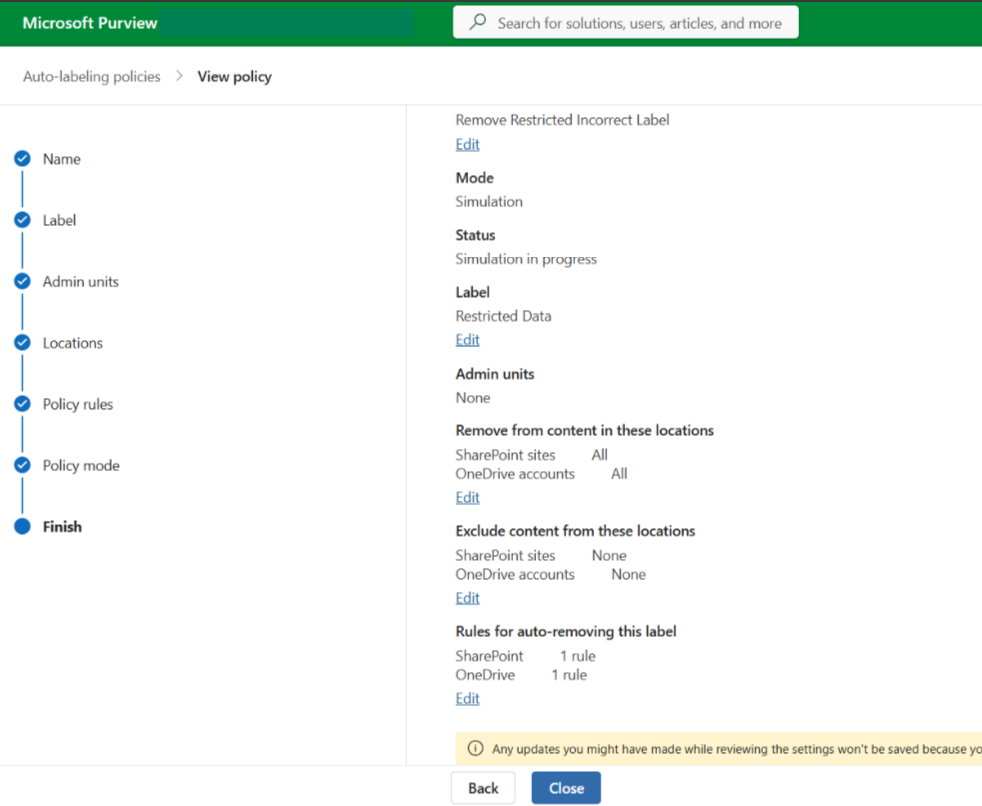
Step 1: Remove the Incorrect Label
Use an auto‑labeling policy configured to remove the old label
Scope carefully (sites, users, pilot groups)
Step 2: Apply the Correct Label
Via:
- A new auto‑labeling policy
- Default label assignment
- Manual correction for edge cases
Even with newer Purview capabilities that explicitly support label removal for SharePoint and OneDrive, removal and application remain separate operations, not an atomic replace.
Challenges:
- Two‑pass execution (remove → apply)
- Time‑consuming at scale
- No instant rollback
Exchange Online: Where It Gets More Complex
Exchange introduces a critical complication: encryption.
If the incorrect sensitivity label applies encryption:
- You cannot simply relabel existing email
- Protection is tightly bound to the label’s encryption configuration
Microsoft encryption for sensitivity labels uses Azure Rights Management. Once applied, the content remains protected regardless of where it lives. [learn.microsoft.com]
What This Means in Practice
Correcting encrypted email often requires:
- Decrypting the content
- Removing the incorrect label
- Applying the corrected label
This is not a lightweight operation.
The Role of Super User Access
To make encrypted remediation possible, you often need Super User permissions in Purview.
Super User access allows authorized accounts to open and inspect encrypted content for scenarios such as eDiscovery and investigation. [petri.com]
This enables:
- Access to encrypted emails
- Relabeling or modification during remediation
Reality check:
- This access is intentionally powerful
- It requires elevated permissions
- It does not scale cleanly without automation and strict controls
Microsoft explicitly positions Super User access as exception‑based, not operational by default.
A Practical Remediation Strategy
Based on real‑world cleanup efforts, a structured approach matters.
Phase 1: Contain
- Remove the incorrect label from all policies
- Stop further application immediately
Phase 2: Replace
- Create a new label with correct naming
- Match encryption, markings, and settings exactly
- Publish in a controlled scope
Phase 3: Clean Existing Data
SharePoint & OneDrive
- Auto‑label removal → auto‑label reapplication
Exchange Online
- Super User access → decrypt → relabel
Phase 4: Validate
Use:
- Content Explorer
- Activity Explorer
Confirm:
- The old label is no longer applied
- The corrected label is consistently in use
Phase 5: Communicate
This step is often skipped, and it shouldn’t be.
Bad labels can:
- Break sharing
- Restrict access
- Confuse end users
Clear communication dramatically reduces support noise and trust erosion.
What This Experience Reinforces
- Sensitivity label naming matters more than expected
- There is no true rename capability
- Display name ≠ actual fix
- Correction = remove + reapply
- Exchange adds encryption-driven complexity
- Auto-labeling is powerful, but unforgiving
Closing Thought
Deploying sensitivity labels is the easy part.
Designing them correctly, and knowing how to recover when something goes wrong, is where real expertise shows.
